Best Figma Plugin for Icons: Top 10 Outstanding Choices in 2026
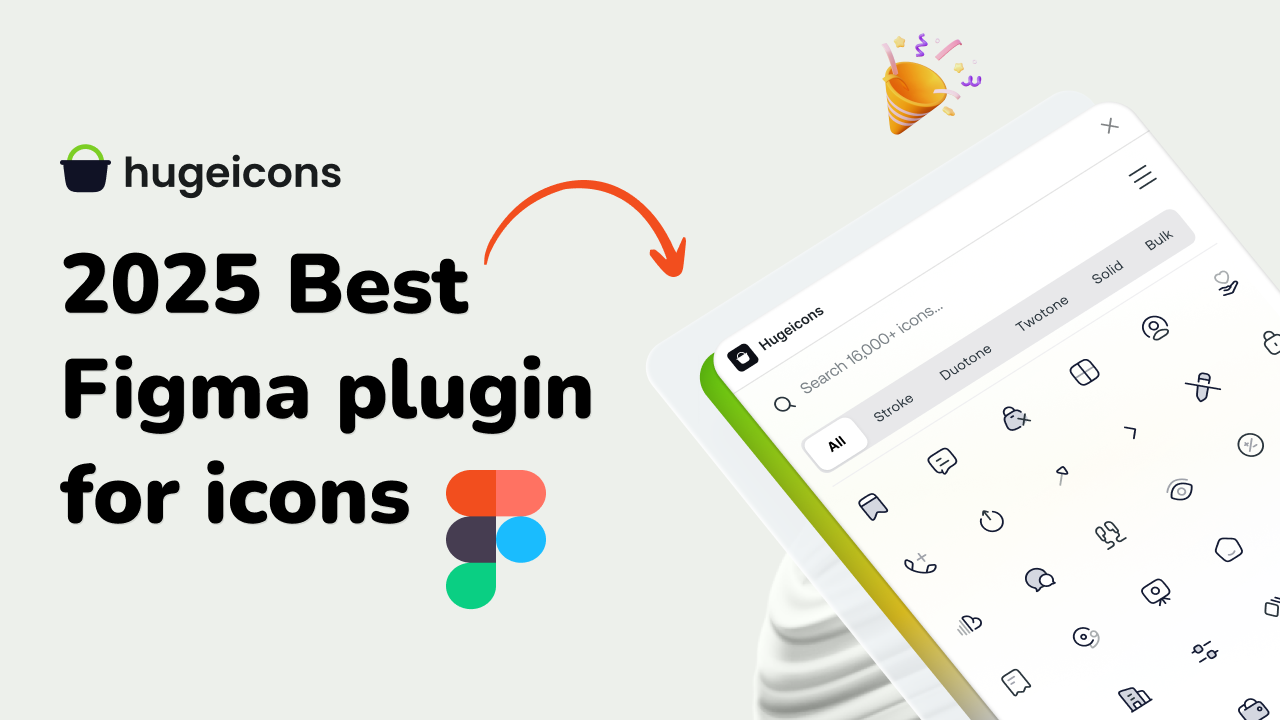
Icons might seem like small details, but they’re actually central to great design. They simplify complex ideas, enhance visual appeal, and guide users intuitively through digital experiences.
While Figma is already a powerful design tool loved by UX/UI designers everywhere, its true potential shines brightest when paired with the right plugins—especially for icons. With countless options available, choosing the best plugins can transform your workflow, saving valuable time and keeping your designs consistent. These plugins can be essential for your next project.
In this article, we’ve handpicked the top versatile collection of the best Figma icon plugins that every designer should consider integrating into their design stack to match each project’s unique style.
What are Figma icon plugins?
Figma icon plugins are helpful extensions that make adding and managing icons within your designs easier. Instead of manually drawing each icon or searching external libraries, these plugins let you quickly browse, customize, and insert icons directly into your projects.
The icon plugins give designers instant access to high-quality icon sets right inside Figma which speeds up workflows and makes sure the visual styles stay consistent across designs. Selecting the right icons is crucial as it enhances the overall quality and user-friendliness of your designs, making the right plugin essential to ease your process and free up more time so you can let your creative juice flow!
How to use icons in Figma with icons Plugin
Icons enrich your designs by clearly conveying information without relying on text. They’re universally understood visuals that help users navigate quickly and intuitively. Because SVG icons are vector-based, they remain sharp and crisp at any size, giving you complete flexibility to adapt them to your project’s specific needs.
Figma plugins often provide both icons and illustrations, which can be used to enhance the visual appeal of your designs.
Using icons in Figma is straightforward and quick, even if you’re new to design. You can either bring icons directly into your workspace as SVG files or access them using specialized plugins. To add icons manually, you have to drag and drop the SVG icon files onto your canvas like you’d add images.
Once added, these icons become fully editable. From there, you can adjust colors, sizes, and even modify their shapes directly in Figma.
However, icon plugins allow you to instantly browse and insert icons without downloading anything separately. Simply install your chosen icon plugin, open it within Figma, search or select an icon, and click to place it right onto your canvas. This saves you valuable time by keeping everything organized in one place.
In the next section, we’ll dive into some of the most useful and popular icon plugins for Figma in 2026.
Top Figma icon plugins
Here’s our curated list of the best Figma plugin for icons that you should know of in 2026 —
1. Hugeicons
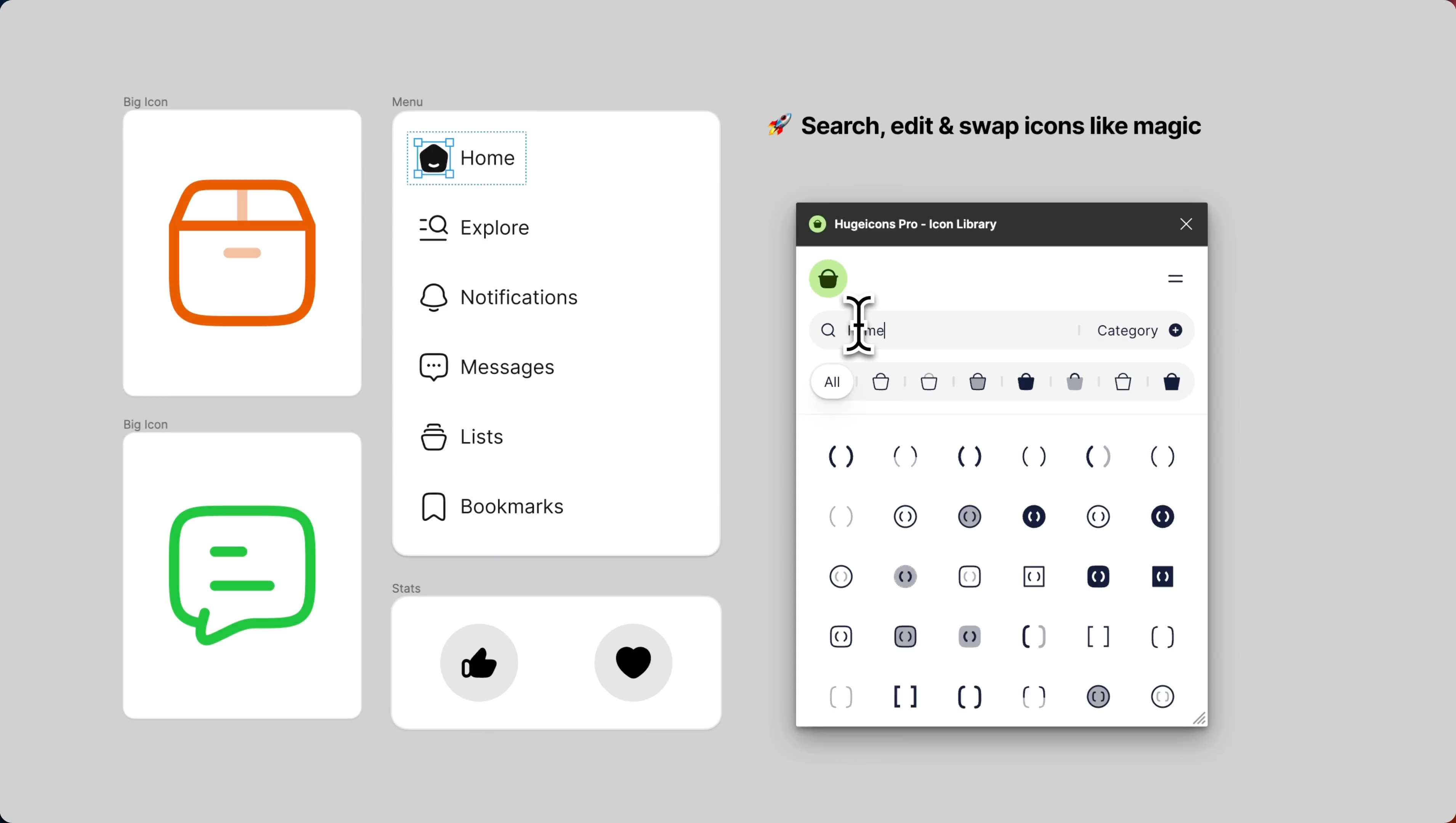
Hugeicons is the most popular icon collections and a creative toolkit built to empower designers and developers. The icon library offers stunning icons right inside Figma with precision and flair. It features over 4,600 free icons and a vast offering of 46,000+ premium icons.
What’s more is that you can request for the icons you need and their in-house designers will design custom icons according to your needs. Hugeicons uses local storage for performance, ensuring quick access to icons and smooth integration into your design workflow.
They offer both monthly and lifetime purchase that recently rolled out a new feature called “custom icons”, with it, you can add your own icons to your collection right in the hugeicons ecosystem.
Hugeicons features:
- Great Figma integration with Figma plugin
- 46,000+ high-quality icons across 10 unique styles
- Styles include Stroke, Sharp, rounded, Solid, Duotone, Twotone, Bulk, and more
- Free tier with 4,600+ stroke icons available at no cost
- Customizable stroke, size, and color
- Integration with React, Flutter, Vue.js, and more
- Available formats: SVG, IconJar, NPM packages, Figma files, and CDN
- Lifetime access
- Custom icons
- Icon requests
Pros:
- Massive and versatile icon collection
- Full customizability
- Cross-platform compatibility
- Consistent quality
- Free and premium options
Cons:
- No notable cons
Rating:
Collection: 5/5
Quality: 5/5
Ease of Use: 5/5
Figma Plugin Link:https://www.figma.com/community/plugin/1209922740177393208
2. Phosphor Icons
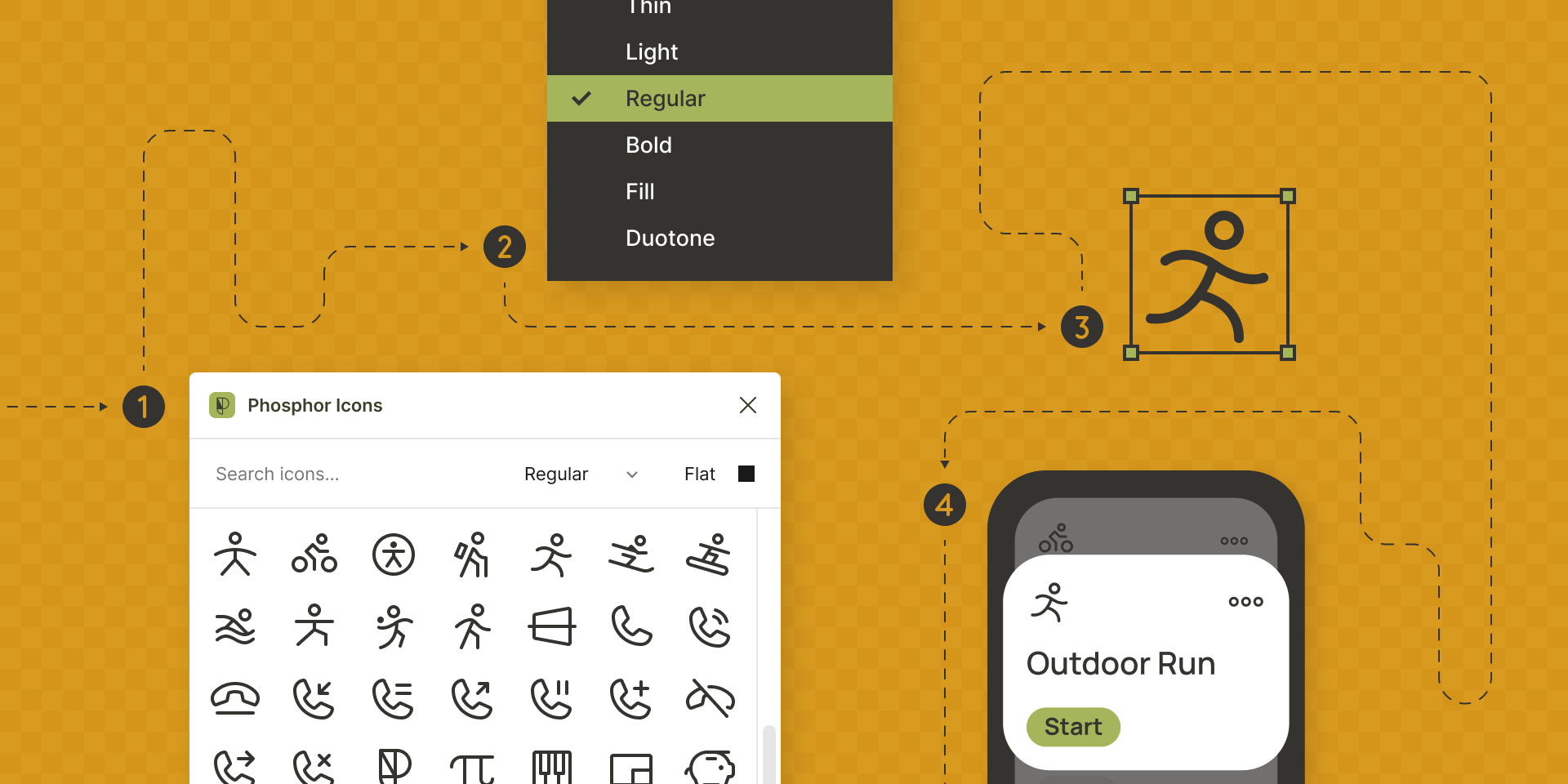
Phosphor Icons is a dynamic and versatile icon family tailored for interfaces, diagrams, presentations, and beyond. It is perfect for creators who value flexibility and style. The icon library is fully open-source under the MIT license, enabling you to use, adapt, and even contribute to its development.
They provide lightweight, tree-shakable libraries for seamless integration. Their recent updates added hundreds of new icons and features, making it a great choice for modern workflows. Phosphor Icons also supports performance personalization and marketing, making it a versatile tool for various design needs.
This library brings beautifully designed icons straight to your projects with elegance and ease. It offers over 9000 free icons across six distinct weights including thin, light, regular, bold, fill, and duotone.
Phosphor icon features:
- Open source
- Minimalistic design
- 9000+ downloadable icons
- Figma plugin
- Sketch plugin
- Icon request
- Two tone aesthetic
Pros:
- Simple and modern design
- Lightweight style
Cons:
- Limited expressiveness
Rating:
Design: 5/5
Versatility: 4/5
Expressiveness: 3/
Figma Plugin Link: https://www.figma.com/community/plugin/898620911119764089
3. Lucide Icons
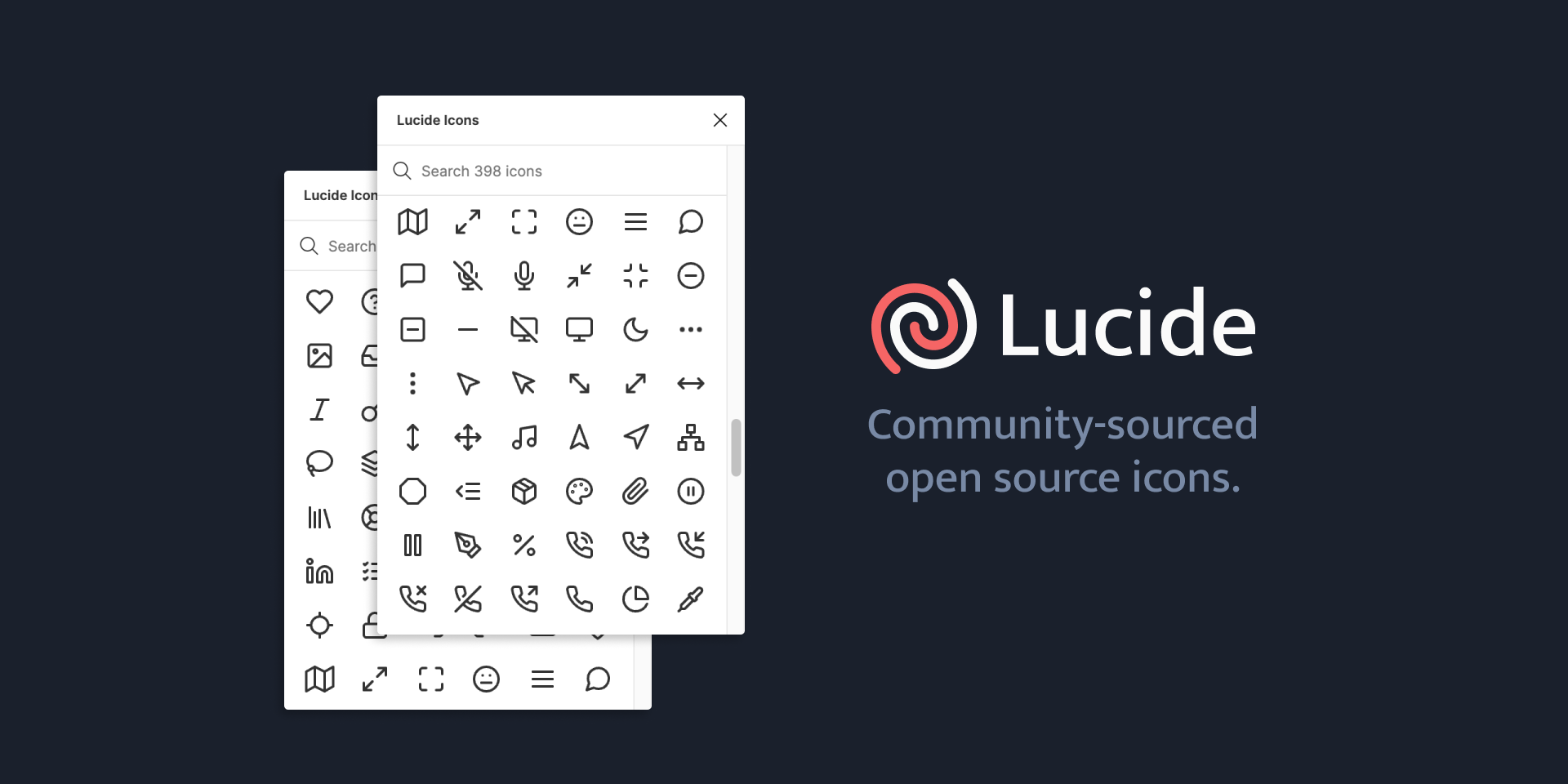
The Lucide Icons Figma Plugin is a great plugin that brings the elegance and simplicity of the Lucide icon library of over 1,500 open-source icons directly into Figma.
As a fork of Feather Icons, it emphasizes consistency, readability, and a clean 24x24px grid with a 2px stroke, making it ideal for modern UI/UX projects. The plugin allows seamless browsing and insertion of icons into your designs, saving time compared to manual imports.
It is an open-source (ISC licensed) and community-driven icon library that’s free to use and constantly evolving, with options to suggest or contribute icons via GitHub. Integration is smooth, and the icons’ lightweight design ensures they don’t bloat your files. Lucide Icons uses tags and local storage to manage data efficiently, ensuring a smooth user experience.
However, while the collection is great, it’s smaller than some competitors (like Hugeicons’ 46,000+ icons), so highly niche needs might require supplementation. Customization within Figma is limited to basic adjustments (size, color, stroke), which suits most use cases but may feel restrictive for complex edits.
Lucide icon features:
- 1000+ free icons
- Figma plugin
- Code optimization
- Accessibility features
Pros:
- Extensive collection
- Clear and versatile designs
Cons:
- Limited to specific design styles
Rating:
Collection: 4.5/5
Clarity: 5/5
Versatility: 4/5
Figma Plugin Link: https://www.figma.com/community/plugin/939567362549682242
4. Ant Icons
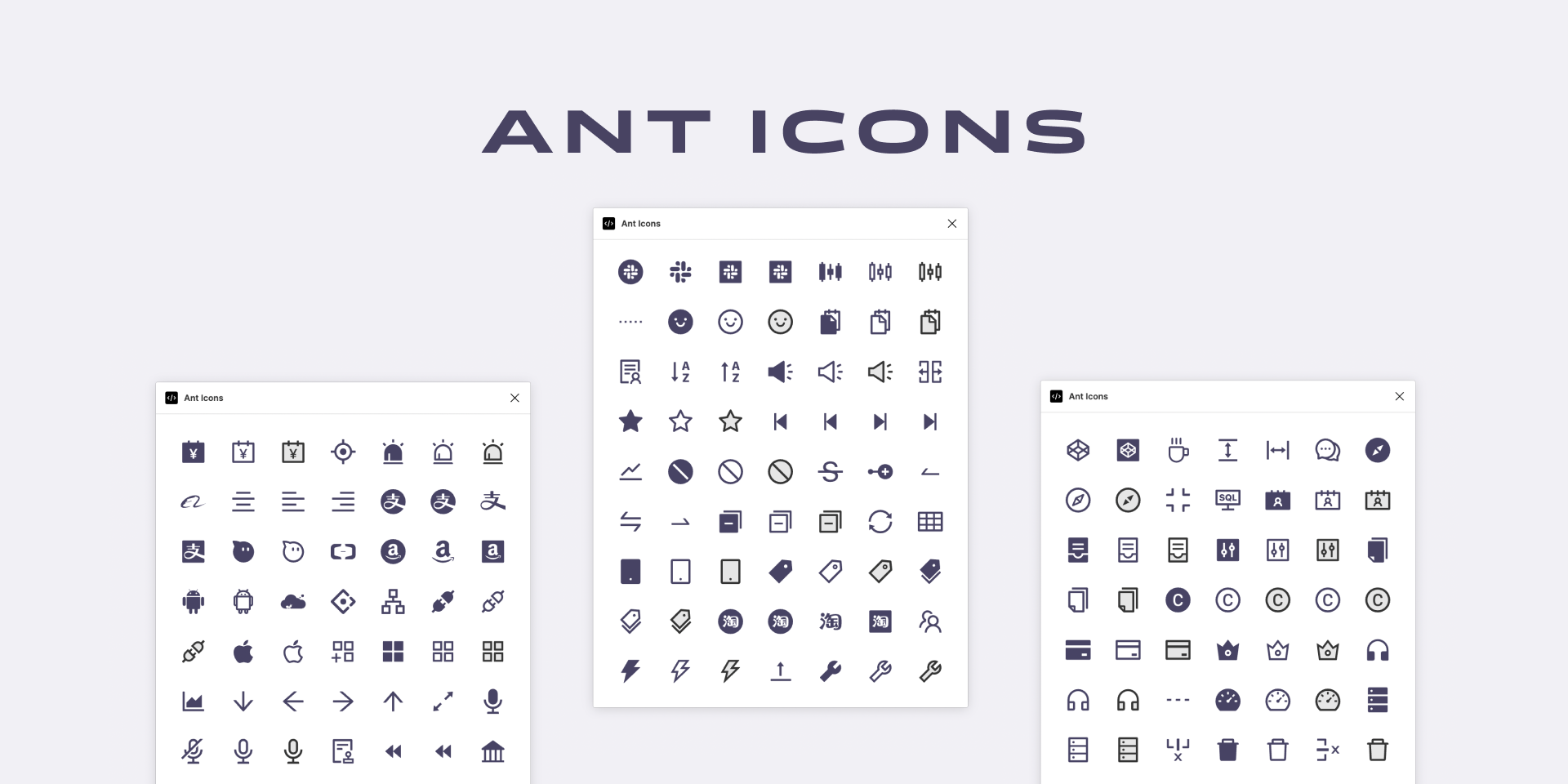
Ant Design Icons is a high-quality, open-source icon set designed to complement the Ant Design system. With a vast collection of over 1,000+ icons, this library provides sleek, consistent, and scalable icons tailored for modern web applications.
Optimized for React and Vue, Ant Icons fluently integrate into development workflows, offering both outlined and filled styles to match various UI needs. Whether you’re building dashboards, SaaS products, or enterprise applications, these icons ensure a polished and professional look. Ant Icons also uses pixel tags and local storage to enhance performance and personalization, making it a powerful tool for modern web applications.
Developers can easily customize size, color, and stroke width, making them versatile for any design system. With its active maintenance and alignment with Ant Design’s ecosystem, Ant Icons is a go-to choice for building intuitive and visually cohesive interfaces.
Ant icon features:
- Drag and drop to the canvas from plugin UI
- Tailored for Ant Design’s UI
Pros:
- Uniform and consistent design ideal for a consistent user interface
Cons:
- Limited variety
Rating:
Uniformity: 5/5
Consistency: 5/5
Variety: 3/5
Figma Plugin Link: https://www.figma.com/community/plugin/1075720637183099189
5. Heroicons
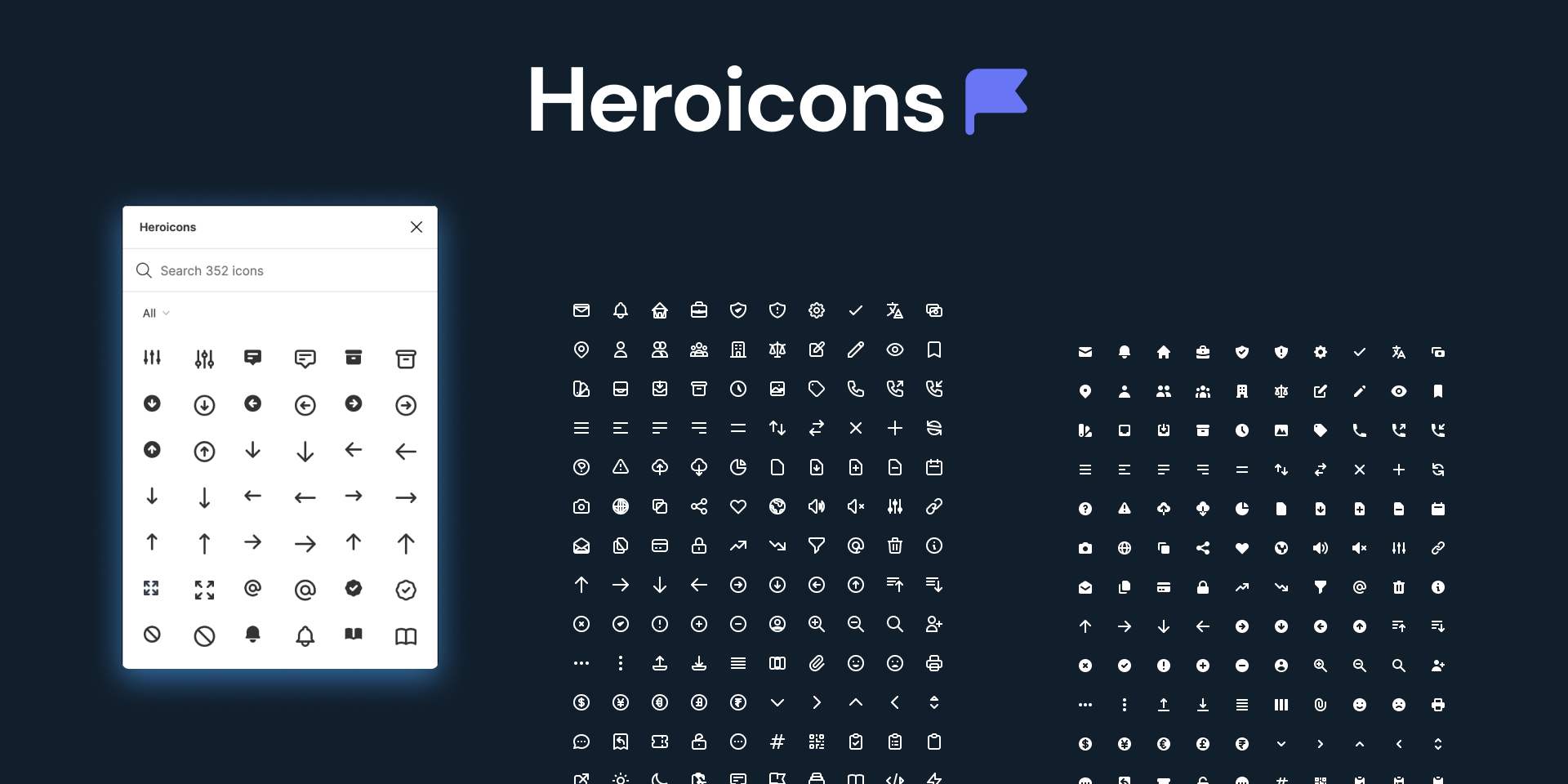
The Heroicons Figma Plugin is a sleek, practical tool that brings the Heroicons library consisting of 452 MIT-licensed, high-quality SVG icons into Figma, making it a go-to for designers working on web and mobile interfaces.
Crafted by the Tailwind Labs team, these icons come in two styles (outline and solid), offering a minimalist, polished aesthetic perfect for buttons, navigation, and UI elements.
The plugin’s interface is straightforward: search or browse the collection, then drag-and-drop icons into your canvas with ease. Its tight integration with Tailwind CSS is a bonus for those already in that ecosystem, ensuring design-to-code consistency. Heroicons also uses storage for performance personalization, ensuring a tailored user experience and efficient data management.
At just 452 icons, the library is smaller than the competitors, which might leave you wanting for niche use cases, but the focus on quality over quantity shines through because each of the icons are crisp, scalable, and adheres to a uniform 24x24px grid.
Customization in Figma is basic (size, color, rotation), sufficient for most tweaks, though advanced edits require external tools. It’s free, open-source, and lightweight, ideal for clean, modern designs without overwhelming options.
Heroicons features:
- 450+ icons
- Open source with an MIT license
Pros:
- Reliable and easy to use
- Bold visual appeal
Cons:
- Limited to specific design styles
Rating:
Reliability: 5/5
Visual Appeal: 4/5
Variety: 3/5
Figma Plugin Link: https://www.figma.com/community/plugin/876119978690687541
6. Remix Icon
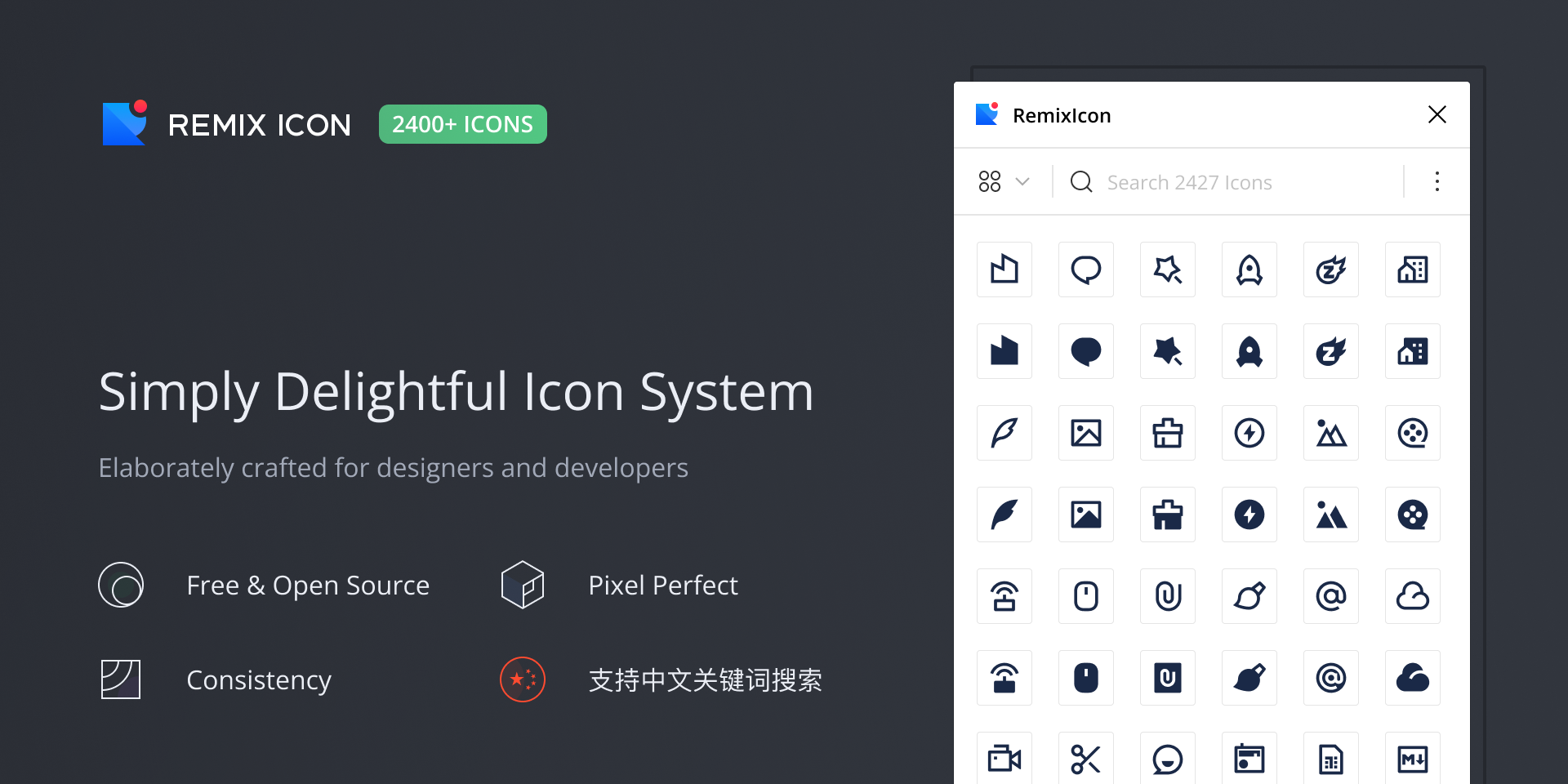
The Remix Icon Figma Plugin is a fantastic shortcut for designers craving access to Remix Icon’s library of over 2,700 open-source, neutral-style icons—all free under the Apache 2.0 license.
This unofficial plugin (not maintained by Remix Design but by a passionate contributor) lets you search, browse, and drag-and-drop icons into your Figma canvas with ease, supporting desktop app use. The icons, designed with a 24x24px grid and consistent 1.5px strokes, are clean, readable, and versatile, spanning categories like UI, arrows, and social media. They're perfect for web, mobile, or system designs.
Features like color and size customization within the plugin puts ease on workflows, though it lacks advanced options like stroke weight tweaks.
Remix icon features:
- Over 2,000 icons in a wide range of themes
Pros:
- Versatile and wide-ranging designs
- Useful for various applications
Cons:
- Inconsistencies in icon style
Rating:
Variety: 5/5
Versatility: 4.5/5
Consistency: 3/5
Figma Plugin Link: https://www.figma.com/community/plugin/1089569154784319246
7. Bootstrap Icons
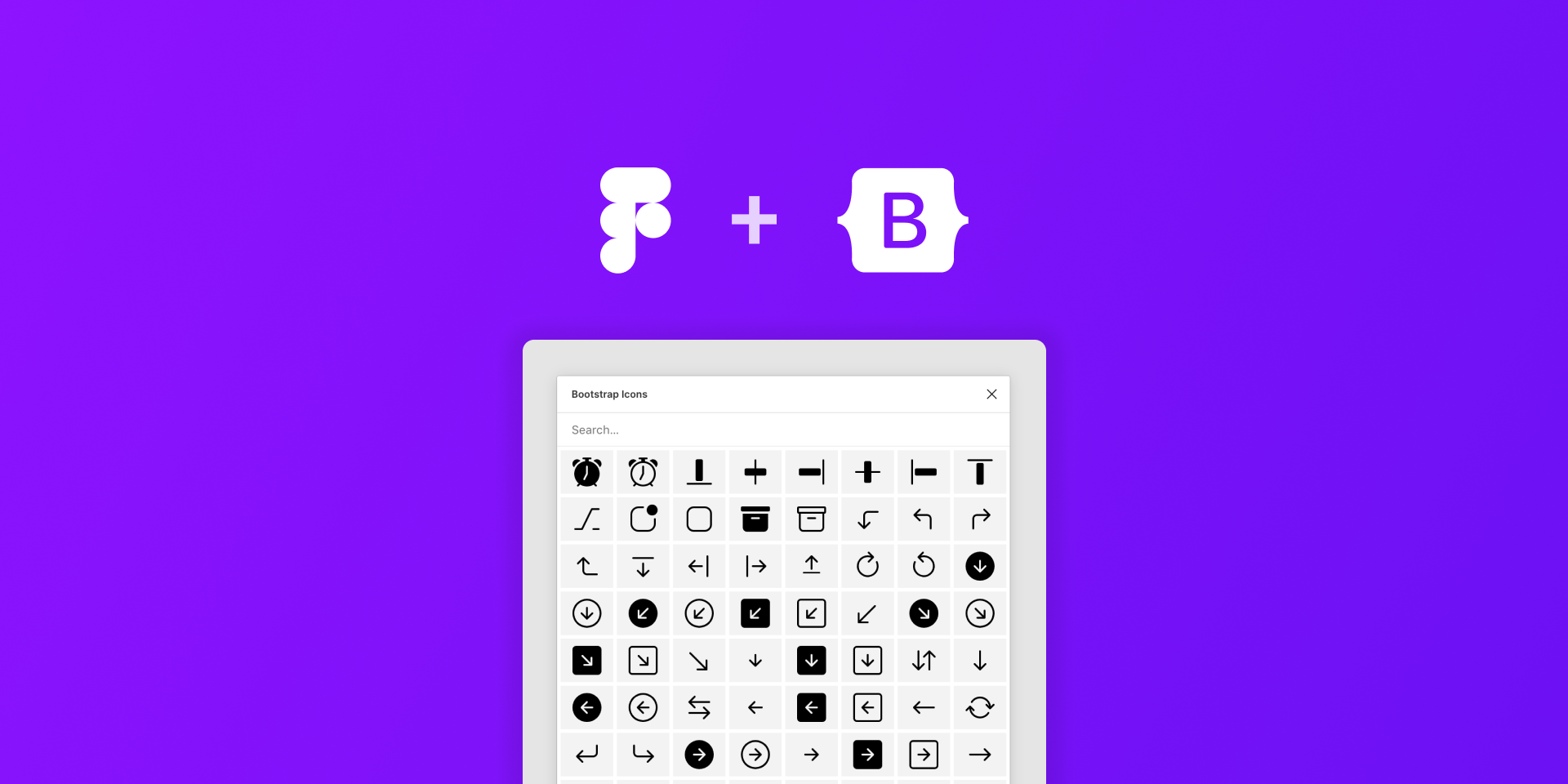
The Bootstrap icons Figma plugin is a solid pick for anyone deep in the web design game, especially if you’re already vibing with the Bootstrap framework. Straight from the Figma Community (version tied to Bootstrap Icons v1.11.3), it gives you access to over 2,000 MIT-licensed SVG icons, all crafted by the Tailwind Labs crew behind Bootstrap itself.
The plugin’s a breeze to use. Open it in Figma’s desktop app, search or scroll through the list, and drag your chosen icon right onto the canvas. They come in clean, web-ready designs like arrows, alerts, and social icons right at home in Bootstrap projects. You can tweak colors and sizes on the fly, and there’s even a handy option to copy the SVG code or download as PNG, which is clutch for bridging design and dev. The website uses cookies, pixel tags, and local storage to enhance performance and personalize user experience.
That said, with only 2,000 icons, it’s not the most expansive library out there. Plus, it’s laser-focused on web-centric symbols, so if your project veers into quirky or super-specialized territory, you might hit a wall. Still, for Bootstrap loyalists or anyone needing a free, reliable icon set that plays nice with Tailwind’s ecosystem, this Figma plugin just works!
Bootstrap icon features:
- Massive library with over 1600 jam icons
Pros:
- Extensive collection of web-related symbols
- Easy integration into Figma
Cons:
- Limited to web-related designs
Rating:
Collection: 5/5
Integration: 4.5/5
Versatility: 3/5
Figma Plugin Link: https://www.figma.com/community/plugin/868341386266170307
8. Iconly Pro
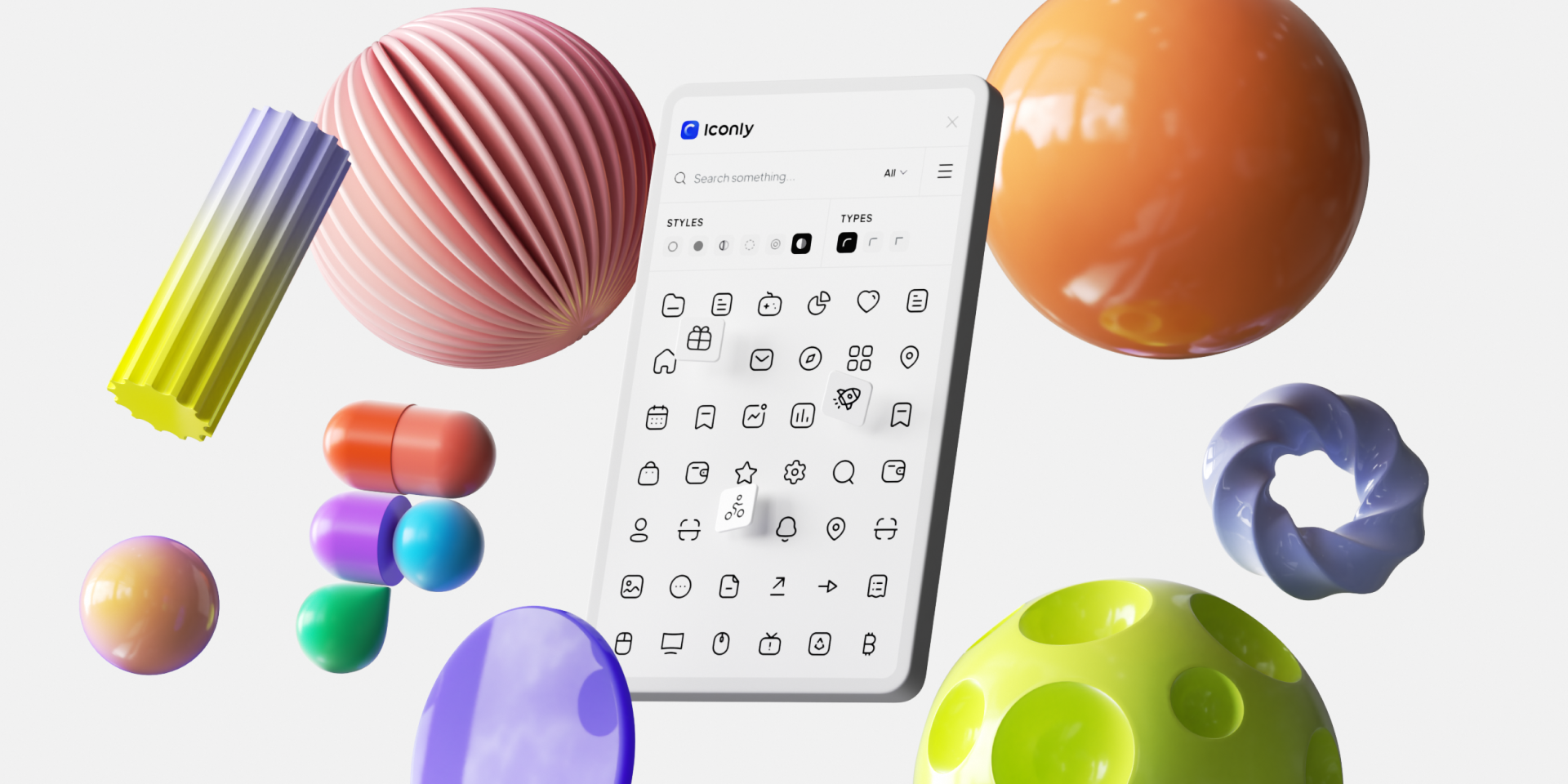
Iconly pro Figma plugin is a treasure chest of over 40,000 flat icons, plus thousands of 3D and animated ones, all polished with what they call “the highest level of detail.” It’s not just a static library either—you’re plugged into an ecosystem that’s constantly growing, with lifetime updates if you go Pro.
The interface feels snappy, you can search for icons fast, filter by style (six options like Light, Bold, and Curved), and drop them into your canvas without hiccups. The real kicker? You can request custom icons if you don’t find what you need, and their in-house team designs them for you.
The icons are vector-based, so tweaking colors or sizes is a breeze, and they export in formats like SVG or PNG, which keeps our pipeline smooth. The free tier gives you access to over 600 icons across five styles, which is generous for testing the waters, but the Pro plan unlocks the full 40,000+ stash, including the animated and 3D options.
Iconly features:
- Over 600 free icons in five distinct styles
Pros:
- Diverse design offerings
- Commercial license for professional projects
- Pro subscriptions grant additional benefits
Cons:
- Lack of certain advertised features
Rating:
Diversity: 5/5
Legality: 4.5/5
Feature Availability: 3/5
Figma Plugin Link: https://www.figma.com/community/plugin/861001888228800074/
9. FontAwesome
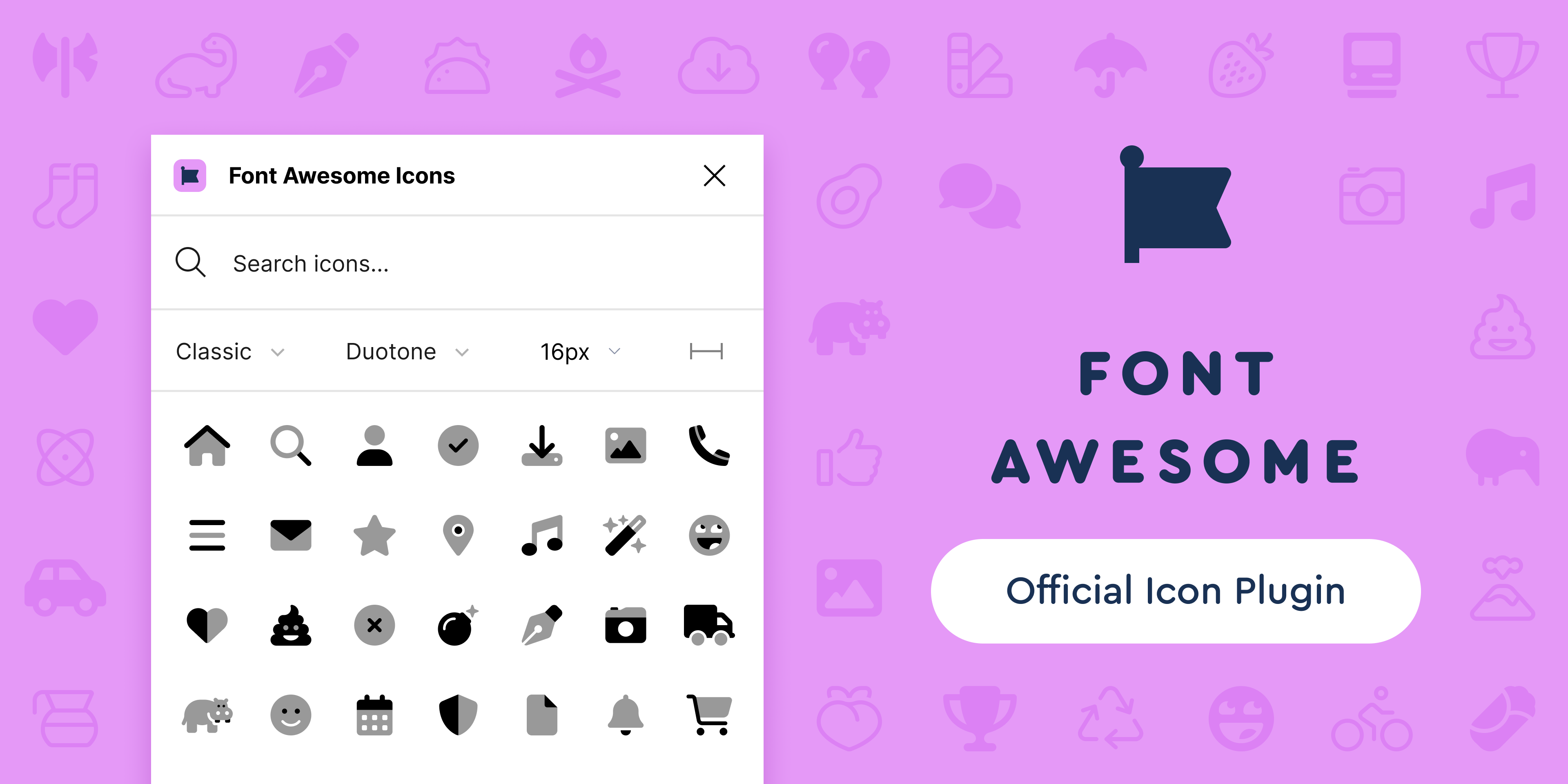
The Font Awesome Figma plugin, available through the Figma community and detailed on fontawesome.com, offers a polished and efficient way to integrate Font Awesome’s vast icon library into design workflows. Built officially by the Font Awesome team, it taps into a collection of over 30,000 icons—2,000+ free ones under the MIT license and a hefty Pro tier with extras like Duotone and Sharp styles.
Launching it in Figma brings up a clean interface consisting of a search bar, family/style dropdowns (Classic, Sharp, etc.), and a clickable grid of icons that land as SVGs on the canvas at 16px by default. Adjusting size before or after placement is straightforward, and color tweaks work like any vector element, keeping things flexible. For Pro users, linking an API token unlocks custom Kit icons, refreshed via a settings gear.
From a usability standpoint, it’s a winner for speed and integration. Designers can sift through icons fast, and the tree-shakable SVGs keep file sizes lean, which matters for complex layouts. The free tier is generous, but the pro upgrade adds serious depth, especially for teams leaning on custom assets.
One hiccup: the plugin’s focus on Kit-loaded custom icons means subsetting or other Kit settings aren’t supported yet, which could trip up advanced users. Compared to leaner libraries like Lucide (1,500 icons), its sheer volume might feel overkill for minimalist needs, but that’s hardly a flaw. Performance stays snappy, and the official backing ensures updates align with Font Awesome’s ecosystem.
Font Awesome features:
- Free icon collection in vector format
- Filtering feature to easily find the desired icons
- Comprehensive icon library
Pros:
- Comprehensive icon set
- Filtering feature for easy navigation
Cons:
- Overused designs
Rating:
Collection: 5/5
Navigation: 4.5/5
Uniqueness: 3/5
Figma Plugin Link: https://www.figma.com/community/plugin/1283461555078380603
10. Material Design Icons
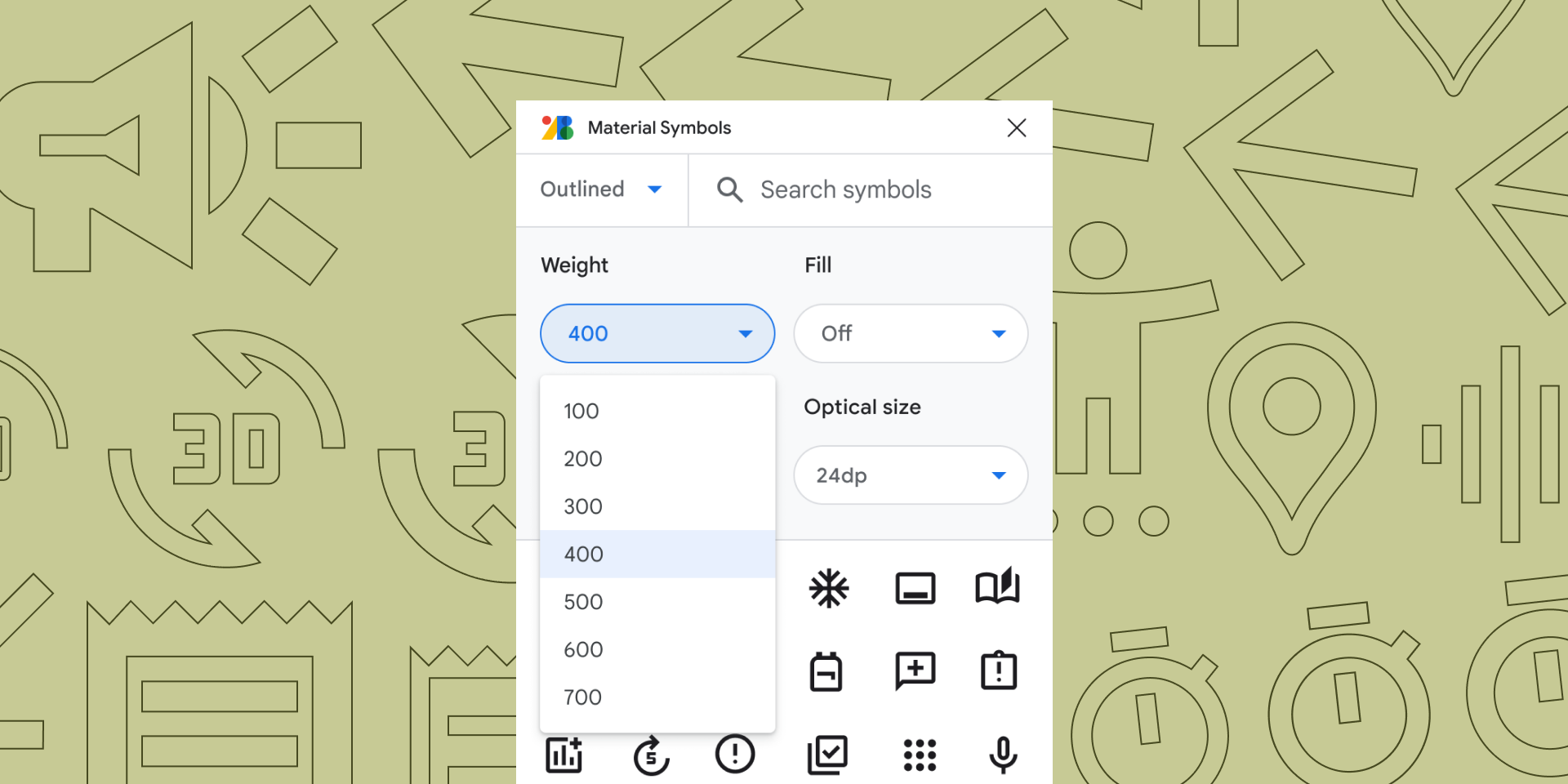
The Material Design Icons Figma Plugin presents a compelling option for designers seeking access to an expansive, community-driven icon library. Built on Google’s Material Design principles, it offers over 7,000 icons in styles like outlined, filled, rounded, sharp, and two-tone.
The plugin offers a search bar powered by fuse.js delivers quick results, and icons insert as SVGs with a single click, maintaining vector flexibility for size and color adjustments. Regular updates via jsdelivr.com ensure the collection stays current, reflecting contributions from over 150 global creators since 2017.
For design workflows, this plugin proves efficient and versatile. The sheer volume caters to diverse needs from UI elements, wayfinding, to quirky symbols. The consistent 24x24px grid aligns with Material Design’s readability ethos. Export options are standard (SVG/PNG), and the open-source nature (MIT license) invites customization or community input via GitHub.
Material Design Icons features:
- Aligned with Google’s Material Design philosophy
Pros:
- Specific feedback mechanisms for app and web integration
- User-friendly designs
Cons:
- Limited to Material Design philosophy
Rating:
User-friendliness: 5/5
Integration: 4.5/5
Variety: 3/5
Figma Plugin Link: https://www.figma.com/community/plugin/1088610476491668236
Choosing Your Perfect Icon Plugin
Choosing the perfect icon plugin involves considering several factors. Flexibility is critical, providing various weights and sizes to cater to different design needs.
A plugin’s community involvement is another important aspect to consider. This signifies the satisfaction and commitment of users to ensure ongoing project improvement and maintenance.
Functionalities also play a significant role in choosing the right plugin. Features that allow for easy drag-and-drop of icons into designs and a search function for rapid icon location contribute to an efficient design workflow. By considering these factors, you can choose the perfect icon ally to enhance your design workflow. Additionally, considering personalization and marketing purposes is crucial when selecting the perfect icon plugin for your design needs.
Summary
Icons play a vital role in digital design, enhancing user experience and breaking language barriers. Whether you’re a minimalist at heart or a fan of bold and vibrant designs, there’s a Figma icon plugin for you. Each plugin offers its unique set of features, from extensive collections to diverse design offerings.
Choosing the right plugin depends on your specific needs and preferences. Whether it's flexibility, community involvement, or specific functionalities, consider these factors to choose your perfect icon ally. With the right icon plugin, you can enhance your design workflow and create visually appealing and intuitive designs.
Frequently Asked Questions
How do I install the Hugeicons plugin in Figma?
Navigate to the official Figma community website, search for the Hugeicons plugin, and select “Install” to add it to your toolset. Once installed, this plugin will be accessible on your Figma canvas ready for use.
Give it a go and take pleasure in its capabilities!
Does Figma have an icon library?
Certainly, Figma possesses a library filled with an extensive assortment of icons across various styles and classifications. This enables you to incorporate icons into your projects by adding them as SVG files which can then be edited.
What is the best icon plugin for Figma?
Hugeicons stands out as the premier icon plugin for Figma, providing access to an extensive array of beautiful icons. This makes it a favored option when it comes to embedding assorted design icon sets into Figma projects.
What is the advantage of using Hugeicons?
Hugeicons presents a valuable asset for designers and businesses by providing access to more than 4000 icons across various styles, free of charge, along with a commercial license suited for professional endeavors.
Are there any free icon plugins available?
Indeed, the best free plugins are already mentioned in the blog post.
Related Posts
5 Lucide Icons Alternatives That Offer Better Icons
Lucide has become one of the most recognizable icon libraries in the modern React ecosystem. It’s open source, lightweight, easy to install, and...

![Icon Design Guidelines: How to Design Beautiful Icons [+Resources]](https://cdn.hugeicons.com/blog/1742968097525-First preview final.png)
Icon Design Guidelines: How to Design Beautiful Icons [+Resources]
Over the years, we’ve designed more than 46,000 icons. Based on this, we’ve compiled a set of guidelines based on our knowledge. This article will...
Top 13 UI UX Design Icon Sets in 2026
Deciding on a icon library? Our expert roundup of the top icon sets for 2026 cuts through the clutter, focusing on standout features, diversity...
Best Figma Icon Libraries in 2026
Figma has changed how designers collaborate, prototype, and ship digital interfaces. But when an individual designer or a design team searches for...
12 Best SVG Icon Libraries to Use in 2026
SVG icon libraries are collections of Scalable Vector Graphic icons that bring precision and flair to websites, apps, and projects. The unique...
.png)
15 Best Free Fonts for UI Designers in 2026
Fonts are essential in UI design, significantly influencing user interaction. Beyond mere availability, selecting the right fonts is crucial, as...